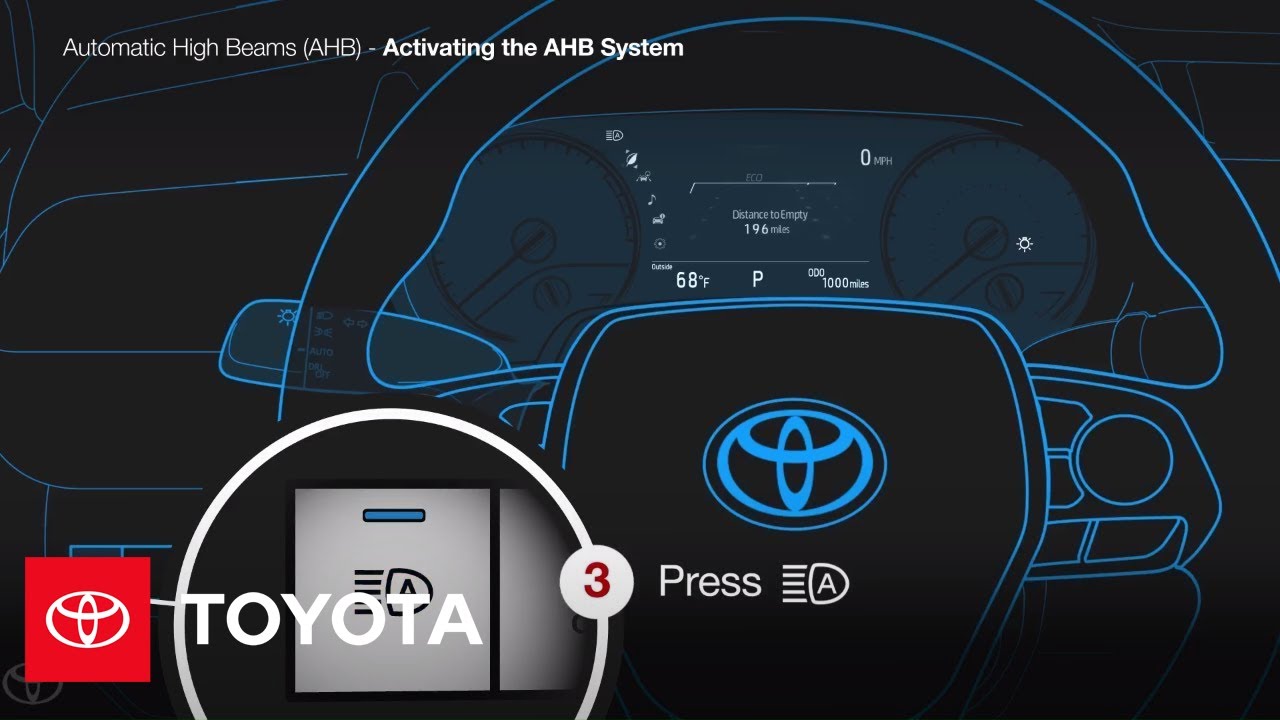
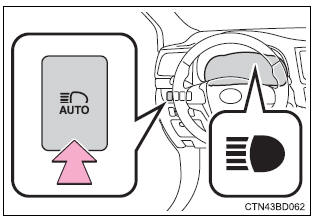
Auto high beam headlights are a fantastic safety feature present in many modern Toyota vehicles. This technology allows the vehicle to automatically switch between high and low beams depending on the surrounding lighting conditions, providing optimal visibility for the driver. However, there may be situations where you want to turn off the auto high beams. Whether you prefer to have more control over your vehicle’s headlights or need to comply with local regulations, knowing how to disable this feature is essential. In this guide, we will walk you through the process of turning off auto high beam headlights in your Toyota.
Steps to Disable Auto High Beam on a Toyota Vehicle:
Disabling the auto high beam feature on your Toyota vehicle is a straightforward process. Follow these simple steps to deactivate the feature:
Locate the Control Stalk: Sit in the driver’s seat and locate the control stalk, which is usually positioned on the left side of the steering column.
Access the Menu: Turn the vehicle ignition on (but do not start the engine) to power up the electronics. Use the control stalk to navigate through the vehicle’s menu options displayed on the instrument cluster.
Find the Settings Menu: Navigate through the menu options until you find the settings related to the high beam headlights. This may vary depending on the specific model of your Toyota vehicle.
Disable Auto High Beam: Once you locate the auto high beam settings, select the option to turn off the feature. Confirm your selection, and the auto high beam headlights should now be deactivated.
Credit: www.youtube.com
Considerations:
Before turning off the auto high beam feature, consider the following factors:
Local Regulations: Ensure that disabling the auto high beam feature complies with local regulations and traffic laws in your area. Some regions may have specific requirements regarding the use of high beam headlights.
Driving Conditions: Assess the driving conditions in your area. If you frequently encounter dark and poorly lit roads, it may be beneficial to keep the auto high beam feature enabled to enhance visibility and safety.
Manual Control: If you prefer having full control over your vehicle’s headlights, disabling the auto high beam feature allows you to manually switch between high and low beams based on your preferences.
Reactivating Auto High Beam:
If you decide to re-enable the auto high beam feature, simply follow the same steps outlined above and select the appropriate option to activate the feature. Having the flexibility to toggle this feature on and off provides convenience and customization tailored to your driving needs.
Consult the Owner’s Manual:
For specific instructions and details related to your Toyota vehicle’s auto high beam feature, refer to the vehicle’s owner’s manual. The manual provides comprehensive information about the operation and customization of various vehicle features, ensuring that you have a thorough understanding of your vehicle’s capabilities and settings.
Credit: www.tacomaworld.com
Conclusion:
Turning off the auto high beam feature on your Toyota vehicle grants you greater control and flexibility over your headlights, allowing you to adapt to different driving scenarios and preferences. Whether you need to comply with local regulations or simply prefer manual control over your vehicle’s lighting, knowing how to disable this feature is a valuable skill for any Toyota owner. Remember to consider the driving conditions and relevant regulations in your area before making the decision to turn off the auto high beams. By following the steps outlined in this guide, you can easily customize your Toyota’s auto high beam settings to suit your individual needs.
Frequently Asked Questions Of How To Turn Off Auto High Beam Toyota
How Do I Turn Off Auto High Beam In Toyota?
To disable the Auto High Beam feature in your Toyota vehicle, follow these simple steps: 1. Locate the Multi-Information Display (MID) control switch on the steering wheel. 2. Press the “Menu” button on the MID switch until you reach the “Settings” menu option. 3. Using the arrow buttons on the MID switch, navigate to the “Auto High Beam” setting. 4. Press the “Enter” button to select the “Auto High Beam” setting. 5. With the setting highlighted, press the “Up” or “Down” button to turn off the Auto High Beam feature. 6. Once the feature is turned off, press the “Enter” button again to save the changes. By following these steps, you can easily deactivate the Auto High Beam function in your Toyota vehicle.
Why Should I Turn Off Auto High Beam In My Toyota?
Although the Auto High Beam feature in Toyota vehicles provides enhanced visibility during night driving, there are certain scenarios where it’s recommended to turn it off: 1. Oncoming Traffic: When approaching or passing other vehicles, it’s courteous to manually switch off the high beams to avoid blinding the drivers in front or coming from the opposite direction. 2. City and Residential Areas: Bright high beams can be a nuisance in well-lit urban areas, so disabling the Auto High Beam is advisable to avoid inconveniencing pedestrians and other drivers. 3. Reflective Surfaces: When driving near reflective surfaces like road signs or construction boards, the Auto High Beam may get triggered unnecessarily, causing distraction or discomfort to the driver. By turning off the Auto High Beam when appropriate, you prioritize safety and considerate driving in different road conditions.
Can I Switch Off Auto High Beam Temporarily In Toyota?
Yes, if you want to temporarily deactivate the Auto High Beam feature in your Toyota, you can follow these steps: 1. Locating the Multi-Information Display (MID) control switch on the steering wheel. 2. Press the “Menu” button on the MID switch until you reach the “Settings” menu option. 3. Using the arrow buttons on the MID switch, navigate to the “Auto High Beam” setting. 4. Press the “Enter” button to select the “Auto High Beam” setting. 5. With the setting highlighted, press the “Down” button to switch the Auto High Beam to “Temporary Off” mode. 6. The Auto High Beam will remain off until you turn the vehicle off and on again, ensuring temporary deactivation. By utilizing the “Temporary Off” mode, you can conveniently and temporarily disable the Auto High Beam feature in your Toyota when needed.
Hyundai Ioniq 6 Radio Problems: Common Issues Year by Year!!
Hyundai Ioniq 6 owners frequently encounter radio and infotainment issues, which can disrupt connectivity and functionality. Common problems include Bluetooth connectivity failures, software glitches, weak radio reception, and touchscreen malfunctions. Issues may stem from outdated software, faulty hardware, or interference. Troubleshooting steps include checking the power supply, inspecting the antenna, and performing system resets. In some cases, replacing radio components may be necessary. Regular software updates can enhance performance and introduce new features. To better understand these challenges and potential solutions, additional insights into the specific issues may be beneficial.
Most Common Radio and Infotainment Problems
The Hyundai Ioniq 6 has a modern infotainment system that can sometimes face issues.
Common problems and their signs are:
Bluetooth Connectivity Problems
Signs: Trouble pairing devices, dropping connections, or poor audio quality.
Causes: Outdated software, distance from the device, or interference from other devices.
Software Glitches
Signs: System freezes, slow touch response, or navigation fails to load.
Causes: Outdated software, too many background apps, or corrupted data.
Radio Reception Issues
Signs: Weak signal, static noise, or unable to find stations.
Causes: Faulty antenna, nearby obstructions, or damaged wiring.
Touchscreen Problems
Signs: Unresponsive screen, incorrect touch, or screen flickering.
Causes: Dirt on the screen, hardware failure, or software issues.
Voice Recognition Issues
Signs: Commands not recognized, inconsistent responses, or system not activating.
Causes: Background noise, microphone issues, or outdated software.
Apple CarPlay/Android Auto Problems
Signs: Fails to connect, apps not displaying, or frequent disconnections.
Causes: Incompatible phone software, faulty cables, or USB port issues.
For persistent issues, visiting a Hyundai service center is recommended for expert help.
Regular software updates can help reduce these problems.
Infotainment Problems by Model Year
Model Year
Common Issues
Frequency/Severity
2023
Connectivity issues with Bluetooth
Moderate
Infotainment system freezing
Low
Navigation glitches
Moderate
2022
Software updates causing malfunctions
High
Touchscreen responsiveness issues
Moderate
Voice command inaccuracies
Low
2021
Initial setup problems
Moderate
App integration issues
High
Volume control inconsistencies
Low
2020
Display screen dimming
Low
Radio reception problems
Moderate
Media playback interruptions
Low
2019
Limited app compatibility
Moderate
System crashes during updates
High
User interface navigation confusion
Low
Identification of patterns or recurring problems
The Hyundai Ioniq 6’s infotainment system has faced several common problems over the years.
Owners often report issues like system freezes, unresponsive touch screens, and trouble connecting via Bluetooth. These problems are especially noticeable in early production models, where software updates have not completely fixed the glitches.
Another frequent issue is audio quality. Many users experience sound distortion and dropouts, particularly in cars with premium audio systems. This suggests that there may be compatibility issues with the hardware.
Drivers commonly mention difficulties navigating the user interface. They find the controls confusing, which makes it hard to use the system while driving.
This feedback shows a clear need for Hyundai to improve their infotainment technology. Future updates should not only fix current issues but also enhance user experience and system reliability.
Addressing these recurring problems is essential for keeping the Ioniq 6 competitive in the automotive market.
Troubleshooting Radio Issues: Step-by-Step Guides
Step 1: Check the Power Supply
Ensure the vehicle is in accessory or on mode. Verify that the fuse associated with the radio is intact.
Step 2: Perform a Hard Reset
If the radio remains unresponsive, disconnect the battery for a few minutes and then reconnect it to reset the system.
Step 3: Inspect the Antenna
Examine the antenna for any damage or poor connections. Make sure it is securely attached and free from obstructions.
Step 4: Check Audio Settings
If the radio powers on but there is no sound, adjust the volume and confirm that the correct audio source is selected.
Step 5: Examine Wiring Connections
Inspect the wiring connections behind the radio unit for any loose or damaged wires. Refer to the vehicle’s manual for specific wiring diagrams, and consider updating the radio firmware or visiting a certified technician if issues persist.
Tips for isolating hardware vs. software issues
To fix radio issues in the Hyundai Ioniq 6, it’s important to tell if the problem is with the hardware or the software.
Here are some helpful steps to find out what’s wrong:
Reset the System: Start by resetting the radio. This can clear up software problems. If the radio works fine after the reset, the issue is likely software-related.
Check Connections: Look at the wiring and connectors. Make sure nothing is damaged or loose. If you find issues here, you may need to repair or replace these hardware parts.
Test Other Devices: Try connecting a different audio device to the radio. If the new device plays sound without issues, the radio’s hardware might be faulty.
Infotainment Software Updates: A Game-Changer?
Infotainment software updates play a crucial role in enhancing the performance and functionality of the Hyundai Ioniq 6’s radio system.
Regular updates can effectively resolve existing issues and introduce new features, ensuring an optimal user experience.
Understanding how to check for and install these updates is essential for maintaining the system’s reliability and efficiency.
The role of software updates in resolving issues
Software updates play a crucial role in improving the Hyundai Ioniq 6’s infotainment system.
They not only add new features but also fix problems, especially with radio performance. Keeping the software updated helps users enjoy a better experience.
Key benefits of software updates include:
Bug Fixes: Regular updates can fix issues like glitches and problems connecting to devices, which can affect radio use.
New Features: Updates may bring improved streaming services or better connections with smartphones.
Security Enhancements: Keeping software up to date protects the infotainment system from potential threats, making it safer to use.
These updates change how drivers use their cars and are essential for keeping the Ioniq 6’s infotainment system running smoothly.
As technology advances, it’s important for drivers to be aware of new updates to get the most from their vehicles and solve any issues.
Checking for updates regularly ensures the best performance and user experience.
How to check for and install updates
Step 1: Navigate to the settings menu within the Hyundai Ioniq 6’s infotainment system.
Step 2: Locate the section labeled “System Updates” or “Software Updates” to check for available updates.
Step 3: If an update is available, ensure your vehicle is parked safely and connected to a stable Wi-Fi network.
Step 4: Follow the on-screen prompts to download and install the update, making sure to maintain the vehicle’s battery level or keep the engine running to prevent interruptions.
Step 5: After installation, allow the system to restart and verify the version number to confirm the update was successful.
When Hardware Fails: Replacing Radio Components
Common Hardware Failures
Symptoms
Estimated Replacement Costs
Faulty Radio Unit
No sound output, radio not powering on
$300 – $600
Damaged Speakers
Distorted sound, no sound from specific speakers
$100 – $400 per speaker
Broken Antenna
Poor radio reception, no signal
$50 – $150
Malfunctioning Display Screen
Unresponsive screen, flickering display
$200 – $500
Shorted Wiring Harness
Intermittent sound, complete loss of function
$100 – $250
Defective Bluetooth Module
Inability to connect devices, dropped connections
$150 – $300
Failed Amplifier
Weak sound output, distortion
$200 – $500
Corroded Connectors
Poor connection, intermittent functionality
$50 – $100
Faulty CD/DVD Player
Inability to read discs, skipping sounds
$100 – $300
Common hardware failures in Edge infotainment systems
Infotainment systems in the Hyundai Ioniq 6, like the Edge system, can face hardware problems that affect how they work.
Knowing these issues helps with fixing them faster.
Here are some common hardware failures:
Display Issues: Screens may flicker or stop working entirely. This makes it hard to use the system and can be distracting while driving.
Audio Problems: Sound might be distorted or completely lost due to broken amplifiers or loose speaker connections. This affects music enjoyment and navigation instructions.
Connectivity Issues: Bluetooth or Wi-Fi failures can disrupt phone connections and app access. This limits features like hands-free calling or streaming music.
Quickly identifying and replacing these faulty components is key to keeping the Edge infotainment system working well.
Addressing these problems promptly ensures that Hyundai Ioniq 6 owners enjoy a reliable system, which enhances their overall driving experience.
Aftermarket Solutions for Radio Problems
Here’s a comparison table for various aftermarket head units that could potentially solve radio problems in the Hyundai Ioniq 6:
Brand
Model
Features
Compatibility
Price
Pioneer
DMH-WT7600NEX
10.1″ touchscreen, Apple CarPlay, Android Auto, Bluetooth, HD Radio, customizable interface
Universal (check specific vehicle integration)
$1,200
Kenwood
DDX9706S
6.95″ touchscreen, Apple CarPlay, Android Auto, Bluetooth, 13-band EQ, dual camera inputs
Universal (check specific vehicle integration)
$800
Sony
XAV-AX7000
6.95″ touchscreen, Apple CarPlay, Android Auto, Bluetooth, rear view camera input, voice control
7″ touchscreen, Apple CarPlay, Android Auto, Bluetooth, shallow mount design, customizable UI
Universal (check specific vehicle integration)
$400
Boss Audio
BV9384NV
6.5″ touchscreen, Bluetooth, rear view camera input, USB/SD compatibility, navigation
Universal (check specific vehicle integration)
$300
Notes:
Compatibility: Most aftermarket head units may require additional installation kits or adapters to fit properly in the Hyundai Ioniq 6.
Price: Prices are approximate and can vary based on retailer and promotions.
Features: Features listed are highlights; specific functionalities may vary across models.
Overview of aftermarket head units compatible with the Edge
Upgrading the audio system in your Hyundai Ioniq 6 can greatly enhance your driving experience.
Aftermarket head units are a great option for improving sound quality and adding new features. Brands like Pioneer, Kenwood, and Sony offer head units that are compatible with the Ioniq 6.
Key features of these aftermarket head units include:
Smartphone Integration: Most support Apple CarPlay and Android Auto, making it easy to connect your phone.
Bluetooth Connectivity: Stream music and make hands-free calls without cables.
Customizable Equalizers: Adjust sound settings to fit your preferences.
Enhanced Audio Processing: Better sound quality compared to factory systems.
When choosing a head unit, consider installation.
Many options fit into the existing dash space, often using available wiring harnesses and mounting kits.
Make sure to check compatibility with your specific Ioniq 6 model year, as features and dimensions can differ.
This upgrade can solve radio issues and provide a modern user interface, making your drives more enjoyable.
Pros and cons of replacing the factory system
Replacing the factory audio system in your Hyundai Ioniq 6 can greatly improve your listening experience.
There are several pros to consider:
Pros:
Better Sound Quality: Aftermarket systems usually have improved speakers and better sound tuning, leading to clearer and more powerful audio.
More Customization: You can choose the features you want, like Bluetooth connectivity, premium sound options, or advanced navigation systems.
Modern Features: Upgrading can add the latest technology, making your drives more enjoyable and convenient.
However, there are also some cons to consider:
Cons:
Higher Cost: Upgrading can be expensive. Prices vary depending on the system’s complexity and features.
Compatibility Issues: Some aftermarket systems might not work well with your car’s existing electronics, which can lead to problems.
Installation Challenges: Installing a new system may require special skills. You might need to hire a professional, which adds to the overall cost.
Think carefully about these points to decide if replacing the audio system is the right choice for your Hyundai Ioniq 6.
Infotainment: Warranty Coverage and Extended Protection
Feature
Warranty Coverage
Extended Protection
Features Covered
Basic infotainment system components, including radio, touchscreen, and speakers.
Additional coverage for wear and tear, software updates, and accessories.
Duration
Typically lasts for 3 years or 36,000 miles (whichever comes first).
Can extend coverage up to 10 years or 100,000 miles, depending on the plan.
Cost
Included with vehicle purchase.
Varies based on coverage level; generally ranges from $1,000 to $3,000.
What’s covered under warranty
Hyundai Ioniq 6 owners need to know what the warranty covers for the infotainment system.
The standard warranty protects against several issues, ensuring that problems don’t lead to extra costs.
What’s Covered:
Defective Hardware: This includes problems with the touchscreen, speakers, and other parts that stop working properly.
Software Malfunctions: If the system has bugs or failures that affect how it runs, these can be fixed or updated under the warranty.
Connectivity Issues: Problems with Bluetooth, navigation, and other features are also usually covered.
It’s important for owners to read their warranty papers to understand specific details.
Knowing what is covered helps in making smart choices if something goes wrong.
This knowledge allows Ioniq 6 drivers to enjoy their infotainment system without worry, knowing they have support for unexpected issues.
Options for extended coverage on infotainment systems
Extended coverage for infotainment systems can give Hyundai Ioniq 6 owners added protection. The standard warranty covers the infotainment system for a short time, but extended plans help cover issues that might come up after the original warranty ends.
Hyundai provides several extended warranty options that owners can customize.
These plans usually include protections for parts like the radio, touchscreen, and navigation system. Choosing an extended warranty can help avoid high repair costs down the line.
In addition to Hyundai’s plans, third-party companies also offer extended service contracts focused on infotainment systems.
When exploring these options, it’s important to check the details. Make sure the coverage includes the specific parts and services you need for the Ioniq 6’s infotainment features.
Key points to consider:
Hyundai’s extended warranties can be tailored to individual needs.
Coverage often includes electronic components.
Third-party options may provide additional choices.
Always review terms to ensure complete protection.
Future of Infotainment: What’s on the Horizon?
Infotainment systems in vehicles, like the Hyundai Ioniq 6, are set to change how we drive.
These systems will combine new technology with better user interaction. The goal is to improve entertainment while keeping safety and connectivity in mind.
Artificial Intelligence (AI): AI will learn your likes and driving habits. It will suggest music, podcasts, and even the best routes based on your preferences.
Augmented Reality (AR) Navigation: AR will let drivers see helpful information right on their windshield, making navigation easier and safer.
Better Connectivity: Future infotainment systems will connect smoothly with your personal devices. This means you can access your apps without taking your eyes off the road.
These improvements aim to make driving more enjoyable and less frustrating.
As companies like Hyundai innovate, models like the Ioniq 6 will lead the way in creating better infotainment experiences, focusing on both ease of use and driver satisfaction.
People Also Ask
What Are Common Symptoms of Hyundai Ioniq 6 Radio Issues?
Common problems with the Hyundai Ioniq 6 radio can include sound cutting in and out, static or fuzzy noises, trouble connecting to Bluetooth, controls that don’t work, and error messages on the screen. These signs may mean there is something wrong with the audio system.
How Can I Reset My Hyundai Ioniq 6 Radio System?
To reset your Hyundai Ioniq 6 radio system, find the settings menu on the screen. Then, choose ‘Factory Reset’ or ‘Restore Defaults’ and confirm your choice. This can help fix small problems and bring back the original settings.
Are There Specific Recalls Related to Ioniq 6 Radio Problems?
Yes, there have been recalls for problems with the Ioniq 6 radio system. If you own one, it’s best to check with Hyundai or your local dealership for more details about the recalls and what you need to do.
Can I Use Bluetooth With the Hyundai Ioniq 6 Radio?
Yes, you can use Bluetooth with the Hyundai Ioniq 6 radio. This lets you connect your phone to play music and make hands-free calls. It’s easy to use and helps keep you safe while driving.
What Warranty Options Cover Radio Issues in Hyundai Ioniq 6?
The Hyundai Ioniq 6 comes with a limited warranty that covers problems with the radio and other parts. If you want more protection, you can buy an extended warranty that may include extra coverage for electronic parts.
Hyundai Bayon Radio Problems: Common Issues Year by Year!!
Hyundai Bayon owners often report various radio and infotainment issues, including no sound from speakers, Bluetooth connectivity failures, and navigation errors. Problems can stem from hardware failures, such as damaged speakers and wiring issues, or software glitches that affect functionality. Model years also experience unique challenges; for example, 2022 models frequently struggle with screen freezing. Troubleshooting typically involves checking connections, testing speaker functionality, and ensuring the system receives updates. If problems persist, exploring aftermarket solutions may be beneficial.
Most Common Radio and Infotainment Problems
Hyundai Bayon owners often face common radio and infotainment problems.
Here’s a summary of issues that may arise, along with symptoms and possible causes.
1. No Sound from the Speakers
Symptoms: No audio from the system; sound cuts out; volume control doesn’t work.
Causes: Bad wiring, damaged speakers, or a faulty head unit.
If problems persist, visiting a certified Hyundai technician is recommended for proper diagnosis and repair.
Regular updates can prevent many of these issues.
Infotainment Problems by Model Year
Model Year
Common Issues
Frequency/Severity
2021
Connectivity drops, poor Bluetooth quality
Moderate – Frequent
2022
Screen freezing, navigation glitches
High – Frequent
2023
Software updates causing resets
Low – Moderate
2021
Radio static, channel tuning problems
Moderate – Occasional
2022
Voice command failures
Moderate – Frequent
2023
Compatibility issues with apps
Low – Occasional
Identification of patterns or recurring problems
The Hyundai Bayon has had some common infotainment issues over the years.
Many owners report problems like:
Screen Freezing: The display can suddenly stop working.
Smartphone Connectivity: Users often have trouble connecting their phones via Bluetooth. Devices may not pair or can disconnect without warning.
Audio Output: Sound may cut in and out unexpectedly.
Navigation Errors: Some drivers find that the GPS does not give accurate directions.
These issues tend to be most common in the earlier models.
The first versions of the Bayon had trouble with software updates, leading to ongoing bugs. As newer models were released, Hyundai worked to fix these problems, and many users noticed improvements.
However, some issues still occur, even in the latest versions.
For those considering buying a Hyundai Bayon, it is important to keep these factors in mind, especially if a reliable infotainment system is a priority.
Regular software updates and listening to user feedback are key to enhancing the overall experience.
Troubleshooting Radio Issues: Step-by-Step Guides
Step 1: Ensure the Vehicle is Stationary
Begin by making sure that your Hyundai Bayon is in a stationary position.
This is important for safety and to properly diagnose the radio issue.
Step 2: Check the Radio’s Power Source
Confirm that the ignition is on and check if the radio is muted.
If the radio appears unresponsive, perform a soft reset by disconnecting the vehicle battery for a few minutes.
Step 3: Inspect the Connections
Remove the radio unit from the dashboard and inspect all connections.
Look for any loose or damaged wiring, and pay special attention to the antenna cable, as poor connections can cause reception issues.
Step 4: Test the Speakers
If the radio powers on but you experience sound distortion or other audio problems, test the speakers by adjusting the balance and fade settings.
This will help identify whether the issue is with the radio or the speakers.
Step 5: Consult the Owner’s Manual
If the radio still malfunctions after following the previous steps, consult the owner’s manual for specific troubleshooting procedures or error codes.
If needed, seek professional assistance from a certified technician to resolve the issue effectively.
Tips for isolating hardware vs. software issues
To isolate hardware and software issues in the Hyundai Bayon’s radio system, start by examining the hardware.
Look for any visible damage, loose connections, or corrosion on the wiring harness. Ensure everything is securely connected.
Next, test the radio system’s functionality. Check the power supply and make sure the speakers are working. A simple way to check for hardware issues is to connect an external audio source, like a phone or MP3 player, to see if sound comes through.
If the hardware appears fine, focus on the software. Follow these steps:
Check all radio settings to ensure they are correct.
Look for any error messages or strange behavior on the display.
Perform a factory reset to see if this fixes the problem.
Refer to the owner’s manual for additional troubleshooting tips.
Infotainment Software Updates: A Game-Changer?
Infotainment software updates play a crucial role in addressing and resolving radio issues in the Hyundai Bayon.
By regularly checking for and installing these updates, owners can significantly enhance their vehicle’s functionality and performance.
Understanding the process of managing these updates can be a game-changer for a seamless driving experience.
The role of software updates in resolving issues
Software updates are vital for fixing radio issues in the Hyundai Bayon.
They improve the infotainment system, making it more reliable and user-friendly. Regular updates can solve problems, boost performance, and add new features.
Bug Fixes: Updates can fix glitches that disrupt radio and connectivity functions.
New Features: They may add helpful tools that enhance the driving experience.
Device Compatibility: Updates ensure your smartphone and other devices work smoothly with the car’s system.
Security Enhancements: Keeping the system safe from possible cyber threats.
By regularly updating the software, drivers can enjoy a better experience, with fewer issues and more capabilities.
Whether you’re looking to resolve radio problems or want to take advantage of the latest features, software updates are essential for the Hyundai Bayon.
How to check for and install updates
Step 1: Access the infotainment system‘s main menu in your Hyundai Bayon.
Step 2: Locate and select the “Settings” option, where you will find the “Software Update” section.
Step 3: Ensure that your vehicle is connected to Wi-Fi to facilitate the update process.
Step 4: Check for available updates by selecting the appropriate option.
If updates are available, follow the on-screen prompts to download and install them.
Step 5: Alternatively, to use a USB flash drive, download the necessary software from the Hyundai website onto your computer,
transfer it to the USB drive, insert the drive into the Bayon’s USB port, navigate to the “Software Update” section,
and select the option to update from USB.
Follow the prompts to complete the installation.
When Hardware Fails: Replacing Radio Components
Common Hardware Failures
Symptoms
Estimated Replacement Costs
Radio Unit Failure
No sound output, radio not powering on
$300 – $800
Amplifier Malfunction
Distorted sound, low volume, or no sound
$150 – $500
Speaker Damage
Crackling noise, uneven sound distribution
$50 – $200 per speaker
Antenna Issues
Poor radio reception, static, or no signal
$20 – $100
Wiring Problems
Intermittent sound, complete radio failure
$50 – $150
Display Malfunction
Blank screen, flickering display
$100 – $300
Connectivity Issues
Bluetooth not connecting, USB ports not working
$50 – $150
Fuse Failure
Radio not working at all, blown fuses
$5 – $20
*Note: Costs may vary based on labor, location, and specific model of the Hyundai Bayon.*
Common hardware failures in Edge infotainment systems
Common hardware failures in the Edge infotainment systems of the Hyundai Bayon can cause issues like audio problems, connectivity troubles, and system malfunctions.
These failures can manifest in various ways, including:
Display Issues: A faulty screen can make it hard to see and interact with important information.
Speaker Problems: Blown or damaged speakers can create distorted sound or silence, ruining the listening experience.
Wiring Connections: Loose or corroded wires can cause sound to cut in and out or the radio to stop working entirely.
Control Module Age: Older control modules may fail, leading to unresponsive touch features or strange system behavior.
If you notice these issues, getting a professional diagnosis and replacing the faulty parts is essential.
Keeping these components in good working order is vital for a smooth infotainment experience in your Hyundai Bayon.
This ensures that you can enjoy your music, navigation, and connectivity features while driving.
Aftermarket Solutions for Radio Problems
Brand
Model
Features
Compatibility
Price
Pioneer
DEH-S6220BS
Bluetooth, USB support, 13-band EQ, 4 channels
Hyundai Bayon (2020+)
$150
Kenwood
KMM-BT328U
Bluetooth, USB input, 13-band EQ, 3 RCA outputs
Hyundai Bayon (2020+)
$120
Sony
XAV-AX5000
Apple CarPlay, Android Auto, Bluetooth, 6.95″ touchscreen
Hyundai Bayon (2020+)
$350
JVC
KW-M150BT
Bluetooth, USB input, 2 RCA outputs, 13-band EQ
Hyundai Bayon (2020+)
$170
Alpine
iLX-W650
Apple CarPlay, Android Auto, 7″ touchscreen, dual USB
Hyundai Bayon (2020+)
$300
Boss Audio
BV9358B
Bluetooth, 6.5″ touchscreen, USB port, rear camera input
Hyundai Bayon (2020+)
$120
Clarion
CZ310
Bluetooth, USB input, 3-band EQ, 4 channels
Hyundai Bayon (2020+)
$100
Atoto
A6 Pro
Apple CarPlay, Android Auto, Bluetooth, dual USB
Hyundai Bayon (2020+)
$250
This table provides a comparison of various aftermarket head units suitable for addressing radio problems in the Hyundai Bayon. Each model features various capabilities, and prices range to accommodate different budgets.
Overview of aftermarket head units compatible with the Edge
Aftermarket head units can greatly improve the audio experience in the Hyundai Bayon. These units are designed to fit perfectly in the Bayon’s dashboard and often come with features that the factory radio lacks.
Popular brands like Pioneer, Kenwood, and JVC offer head units with Bluetooth, touchscreen controls, and smartphone integration, including Apple CarPlay and Android Auto.
These features allow for hands-free calling, GPS navigation, and access to music streaming services, enhancing your drive.
Many aftermarket units also provide customizable sound settings, including equalizers to adjust audio output to your liking.
For better sound quality, some models allow for additional amplifiers to be added, appealing to serious music lovers.
Before buying a new head unit, check that it is compatible with the Bayon’s wiring and dashboard.
It’s a good idea to have it professionally installed to ensure everything works correctly and to avoid electrical issues.
Upgrading to an aftermarket head unit can solve radio problems and significantly enhance your audio experience in the Hyundai Bayon.
Pros and cons of replacing the factory system
Replacing the factory audio system in the Hyundai Bayon can greatly improve your listening experience, but it also has some downsides. Aftermarket audio systems often provide better sound quality, more connectivity options like Bluetooth, and modern features that the factory system might lack.
Here’s a quick look at the pros and cons:
Pros
Cons
Considerations
Better sound quality
Installation can be tricky
You might need a professional to install
New features like Bluetooth and navigation
Risk of messing up factory settings
Make sure it works with your car’s system
More options to customize your system
Possible warranty issues
Review the warranty before making changes
Deciding to replace the factory audio system depends on what you want. Think about the benefits and risks carefully. This choice can lead to a more enjoyable driving experience in your Hyundai Bayon.
Infotainment: Warranty Coverage and Extended Protection
Feature
Warranty Coverage
Extended Protection
Features Covered
Manufacturer defects, parts and labor for infotainment system
Additional coverage for wear and tear, accidental damage, and specific electronic failures
Duration
Typically 3 years/36,000 miles
Varies (can range from 1 to 10 years, depending on the plan)
Cost
Included with vehicle purchase
Additional cost (varies by plan, typically ranges from $1,000 to $3,000)
Transferability
Not transferable
Often transferable to new owner, enhancing resale value
Deductibles
No deductibles for covered repairs
May have deductibles that apply per repair visit
Claim Limitations
Limited to manufacturer specified issues
Can cover a broader range of issues, within policy terms
Service Network
Must use authorized Hyundai service centers
May allow for a wider network of service providers, depending on the plan
This table outlines the key differences between standard warranty coverage and extended protection for the Hyundai Bayon, particularly concerning the infotainment system.
What’s covered under warranty
The warranty for the Hyundai Bayon’s infotainment system covers important parts and services that help keep the system working well.
This warranty lasts for five years or 60,000 miles, whichever comes first. It protects you from unexpected repair costs and ensures you have a reliable driving experience.
Key components covered include:
Touchscreen Display: If the display has defects or stops working, it is covered.
Audio Components: Issues with speakers, amplifiers, or connectivity features are included.
Navigation System: The GPS and map functions are under warranty, ensuring they work accurately.
Software Updates: Necessary updates for software to keep the system secure and performing well are included.
This warranty helps you feel confident in your Hyundai Bayon’s infotainment system.
If you have questions about the coverage or need repairs, check your owner’s manual or contact your dealer for assistance.
Options for extended coverage on infotainment systems
Extended coverage options for infotainment systems are available for those who want extra security beyond the standard warranty.
Many car makers, like Hyundai, provide service plans that protect complex infotainment technology, which can sometimes have issues like software bugs or hardware failures.
These extended warranties can cover repairs and replacements for key components, including:
Display screens
Audio systems
Navigation features
Bluetooth connectivity
Coverage often lasts several years beyond the original warranty, helping owners avoid high repair costs.
When considering an extended warranty, check the following:
Deductibles: Costs you pay before coverage kicks in
Claim limits: Maximum amounts the warranty covers
Coverage exclusions: What is not covered
It’s also important to ask about authorized service centers.
Using non-approved shops could void your warranty.
Investing in extended coverage for infotainment systems helps ensure you can enjoy your Hyundai Bayon’s advanced features without worrying about unexpected repair bills.
Future of Infotainment: What’s on the Horizon?
The future of infotainment in vehicles like the Hyundai Bayon is bright, with exciting features on the way to improve how we drive and connect.
New systems will allow drivers to use voice commands, making it safer to control music and navigation while keeping their hands on the wheel.
Voice Recognition:
AI Personalization: Artificial Intelligence will learn what drivers like, adjusting music, routes, and climate settings automatically.
Augmented Reality Navigation: Future navigation will use AR to show directions on real-time video of the road, helping drivers find their way more easily.
Vehicle-to-Cloud Connectivity: Always-on internet will keep cars updated with new apps and features, enhancing the driving experience.
These innovations will not only make trips more enjoyable but also boost safety and convenience.
As companies like Hyundai push the envelope, the Bayon is set to lead the charge in transforming how we experience entertainment and connectivity in our vehicles.
People Also Ask
What Are the Common Symptoms of Hyundai Bayon Radio Issues?
Common problems with the Hyundai Bayon radio can include bad sound, the radio not working sometimes, trouble connecting to phones, buttons that don’t respond, error messages showing up, or the radio not turning on at all. These could mean there are electrical or software problems.
Are There Specific Recalls Related to the Bayon’s Radio System?
Yes, there may be recalls for the Bayon’s radio system. To find the latest and most accurate information, it’s best to check with official resources or your local dealership. They can help you learn about any problems or fixes needed.
How Can I Reset the Hyundai Bayon Radio System?
To reset the Hyundai Bayon radio, find the power button. Press and hold it for about 10 seconds. This will turn the radio off and then back on. This helps fix problems and goes back to the original settings.
What Are the Costs Associated With Radio Repairs for the Bayon?
The costs for fixing a radio can be different, usually between $100 and $500. How much you pay depends on what is wrong, what parts are needed, and how much the repair shop charges for their work.
Is the Bayon’s Radio Compatible With Apple Carplay and Android Auto?
Yes, the Hyundai Bayon works with both Apple CarPlay and Android Auto. This means you can easily connect your phone to the car. You can use apps for maps, music, and messages right on the car’s screen, making it very convenient!
Hyundai Grand Creta Radio Problems: Common Issues Year by Year!!
Hyundai Grand Creta owners frequently report radio and infotainment issues that can disrupt their driving experience. Common problems include audio inconsistencies, Bluetooth connectivity failures, and system freezes. Many of these issues stem from software glitches, outdated firmware, or hardware malfunctions, such as faulty speakers or antenna problems. Troubleshooting can involve checking power supplies, resetting the system, or inspecting connections. Regular software updates are crucial for enhancing system stability. If problems persist, considering aftermarket solutions or consulting a professional may be beneficial.
Most Common Radio and Infotainment Problems
The Hyundai Grand Creta’s radio and infotainment system can face several common issues that may disrupt your driving experience.
These issues can be identified and addressed early to maintain a smoother and more enjoyable driving experience in your Grand Creta.
1. No Sound from Speakers
Symptoms: No audio, ineffective volume controls, intermittent sound.
Regular updates and proper maintenance are essential to keep everything running smoothly.
Infotainment Problems by Model Year
Model Year
Common Issues
Frequency/Severity
2021
Bluetooth connectivity issues
Moderate
Lag in touch screen responsiveness
Moderate
Navigation inaccuracies
Low
2022
Software update failures
High
Random reboots
Moderate
Audio playback inconsistencies
Low
2023
Display blackouts
High
Connectivity dropouts
Moderate
Voice command recognition issues
Low
Identification of patterns or recurring problems
Infotainment issues in the Hyundai Grand Creta show clear patterns over different model years.
Early models struggled mainly with software stability, causing system crashes and touchscreens that didn’t respond. Users had trouble with Bluetooth, often unable to connect their devices or maintain stable links.
As years passed, some improvements were made, but new problems appeared.
Later models had audio quality issues, including distorted sound and sudden dropouts. Users also faced challenges with firmware updates, which were often difficult and sometimes led to system failures.
In newer models, navigation features brought complaints about outdated maps and incorrect traffic data.
These ongoing issues signify a need for better quality checks and user feedback systems to improve the infotainment experience. By addressing these common problems, Hyundai can boost customer satisfaction and strengthen its reputation in the auto industry.
Key issues:
Software stability and crashes
Bluetooth connectivity problems
Audio quality inconsistencies
Firmware update difficulties
Navigation inaccuracies and outdated maps
Troubleshooting Radio Issues: Step-by-Step Guides
Step 1: Check the Power Supply
Ensure that the vehicle’s ignition is on and that the radio is properly connected to the battery.
If the radio is unresponsive, proceed to the next step.
Step 2: Perform a Soft Reset
Disconnect the battery for a few minutes to reset the radio, then reconnect it to see if functionality is restored.
Step 3: Inspect the Antenna Connection
Examine the antenna for loose or damaged parts, as these can cause poor reception.
Ensure it is securely attached and check for any visible signs of wear.
Step 4: Verify Sound Settings
Check the volume settings and balance controls.
Switch between different audio sources, such as Bluetooth or auxiliary inputs, to ensure the speakers are working properly.
Step 5: Consult a Professional Technician
If the issue persists after following the above steps, consider seeking help from a professional technician for further diagnosis.
Document any patterns or specific symptoms to aid in identifying the underlying issue.
Tips for isolating hardware vs. software issues
To find out if your Hyundai Grand Creta’s radio problems are due to hardware or software, follow these tips:
1. Listen for Patterns: Notice when the radio acts up.
If it only happens during specific activities, like using Bluetooth or USB, it’s likely a software issue. If the problem occurs no matter the source, it could be hardware trouble.
2. Check Connections: Look at the wiring and antenna.
Make sure everything is tightly connected. Loose or damaged wires can cause hardware issues. If connections are secure and problems continue, it might be a software glitch.
3. Reset the System: Try doing a factory reset on the radio.
This can clarify if the issue is software-related. If the problems continue after a reset, it’s more likely there’s a hardware failure.
Infotainment Software Updates: A Game-Changer?
Infotainment software updates play a crucial role in enhancing the performance and resolving issues within the Hyundai Grand Creta’s radio system.
Understanding how to check for and install these updates can significantly improve user experience and system functionality.
This discussion will explore the benefits of regular updates and the steps necessary to keep the infotainment system optimized.
The role of software updates in resolving issues
Software updates play a vital role in improving vehicle infotainment systems like those found in the Hyundai Grand Creta.
These updates fix problems and add new features, making the system work better for users.
Bug Fixes: Updates can solve problems like connection issues or system freezes that affect how the radio works.
Feature Enhancements: Car manufacturers often add new tools or improve existing ones. This keeps the infotainment system modern and easy to use.
Security Improvements: Regular updates protect the system from cyber threats, keeping user data safe.
In summary, staying current with software updates ensures better performance, more features, and enhanced security for your vehicle’s infotainment system.
Keeping your system updated is an easy way to enjoy a smoother and safer driving experience.
How to check for and install updates
Step 1: Access the infotainment system’s main menu in your Hyundai Grand Creta.
Step 2: Locate and select the “Settings” option, usually indicated by a gear icon.
Step 3: Navigate to the “System” or “About” section to find options related to software updates.
Step 4: Select “Check for Updates” to see if any updates are available.
Make sure your vehicle is connected to a stable Wi-Fi network for a smooth download.
Step 5: If an update is available, follow the on-screen prompts to initiate the installation.
Keep the vehicle stationary during this process, and restart the system once the update is complete.
When Hardware Fails: Replacing Radio Components
Common Hardware Failures
Symptoms
Estimated Replacement Costs
Faulty Head Unit
No power, no audio output, or intermittent sound
$200 – $600
Broken Display Screen
Cracked screen, no display, or distorted images
$150 – $400
Defective Speakers
Distorted audio, no sound from certain speakers
$50 – $300 per speaker
Wiring Issues
No sound, static noise, or intermittent connections
$75 – $150
Malfunctioning Antenna
Poor radio reception or no signal
$50 – $150
Faulty Bluetooth Module
Unable to connect, dropped connections
$100 – $250
Failed Amplifier
Weak sound output or complete audio failure
$150 – $400
Deteriorated Connectors
Intermittent connection issues or poor sound quality
$25 – $100
Software Glitches
Freezing interface or slow response
$50 – $100 (for updates)
Overheating Components
System shuts down or malfunctions after use
$100 – $300
Note: Costs may vary based on location, labor fees, and specific vehicle models.
Common hardware failures in Edge infotainment systems
Edge infotainment systems can face several common hardware failures that impact their performance and your driving experience.
These failures often arise from key components and understanding them helps in addressing issues quickly.
1. Display Problems: The touchscreen might stop responding or flicker.
This can make it hard to use navigation or control media.
2. Audio Issues: Many users notice sound problems like distortion or complete loss of audio.
Such issues can ruin your enjoyment of music or phone calls.
3. Connectivity Problems: Bluetooth and Wi-Fi connections may fail frequently.
This leads to dropped hands-free calls and interrupted streaming services.
To keep your Edge infotainment system running smoothly, pay attention to these signs.
Promptly replacing faulty components can restore full functionality and improve your driving experience.
Regular check-ups and being aware of these potential problems can help prevent major disruptions in your use of the system.
Aftermarket Solutions for Radio Problems
Here’s a comparison table of different aftermarket head units that can be suitable for addressing radio problems in the Hyundai Grand Creta:
Brand
Model
Features
Compatibility
Price
Pioneer
AVH-W4500NEX
Apple CarPlay, Android Auto, Bluetooth, 6.94″ Display
Universal (double DIN)
$699
Kenwood
DDX9706S
Apple CarPlay, Android Auto, Bluetooth, HD Radio, 6.95″ Display
Universal (double DIN)
$649
Sony
XAV-AX5000
Apple CarPlay, Android Auto, Bluetooth, 6.95″ Display
Universal (double DIN)
$399
JVC
KW-M865BW
Apple CarPlay, Android Auto, Bluetooth, 6.8″ Display
Universal (double DIN)
$499
Alpine
iLX-W650
Apple CarPlay, Android Auto, Bluetooth, 7″ Display
Universal (double DIN)
$349
Boss Audio
BV9364B
Bluetooth, 6.5″ Display, USB/SD/AUX inputs
Universal (double DIN)
$189
ATOTO
A6 Pro
Android OS, Bluetooth, GPS Navigation, 7″ Display
Universal (double DIN)
$239
Scosche
EFX-1000
Bluetooth, USB input, 7″ Display
Universal (double DIN)
$159
Notes:
Prices are approximate and may vary based on location and retailer.
Compatibility may vary based on specific trim levels of the Hyundai Grand Creta; always check for fitment before purchasing.
Features such as GPS navigation and specific audio enhancements may influence the decision based on personal preferences.
Overview of aftermarket head units compatible with the Edge
Aftermarket head units for the Hyundai Grand Creta enhance in-car entertainment and connectivity.
These units fit well into the car’s dashboard and offer features often missing from factory systems.
Key features include:
Touchscreen Interfaces: Easy to use and navigate.
Bluetooth Connectivity: Stream music and manage calls hands-free.
Apple CarPlay and Android Auto Support: Access navigation apps and more directly from the head unit.
Customizable Equalizer Settings: Tailor the audio experience to your liking.
When choosing an aftermarket head unit, check for compatibility with the Grand Creta’s wiring and dashboard dimensions.
Popular brands like Pioneer, Kenwood, and Sony provide options tailored for this vehicle.
Many models are user-friendly and packed with advanced features, making them great for anyone wanting to upgrade their audio system or fix radio issues.
Consider these units for a better driving experience, increased entertainment, and improved connectivity.
Pros and cons of replacing the factory system
Replacing the factory radio in a Hyundai Grand Creta can greatly improve your driving experience.
Aftermarket radios often offer better sound quality, added features like Bluetooth and GPS, and the ability to customize your system.
However, there are some downsides to consider.
Pros:
Better Sound Quality: You can enjoy clearer and more powerful audio.
Extra Features: Many aftermarket radios come with Bluetooth, GPS, and more.
Customization: Choose a design and features that fit your style.
User Interface: Some aftermarket options have a more user-friendly layout.
Cons:
Compatibility Issues: The new system may not work perfectly with your vehicle’s electronics.
Warranty Concerns: Installing a new radio might void your car’s warranty.
Complex Installation: You may need professional help to install it correctly.
Electrical Risks: Poor installation can lead to electrical problems.
When considering an upgrade, think about how the new system will fit with your car and if you want to take on any potential risks.
Balancing these pros and cons will help you decide if replacing the factory radio is right for you.
Infotainment: Warranty Coverage and Extended Protection
Feature
Warranty Coverage
Extended Protection
Features Covered
Factory-installed radio components
Additional components and services
Duration
Typically 3 years/36,000 miles
Varies (usually up to 7 years/100,000 miles)
Cost
Included with vehicle purchase
Additional cost (varies by plan)
Repair Costs
No cost for covered repairs
May cover up to 100% of repair costs depending on plan
Transferability
Generally not transferable
Often transferable to a new owner
Roadside Assistance
Usually included for the warranty period
May include extended roadside assistance
Wear and Tear Coverage
Limited or none
Often includes wear and tear coverage
Deductibles
No deductible for warranty repairs
May have a deductible per service
Claim Process
Direct with manufacturer
May involve third-party administrators
What’s covered under warranty
The Hyundai Grand Creta’s infotainment system warranty covers important aspects to protect your investment.
If there are problems like screen failures or software issues that are due to factory mistakes, these are covered during the warranty period.
Manufacturing Defects:
Electrical Components: Issues related to electrical parts, such as wiring and connections tied to the infotainment system, are generally included.
Navigation and Connectivity: Problems with features like built-in navigation, Bluetooth, and other integrated tools are usually covered unless they result from user error or external damage.
For details on how long the warranty lasts and any specific conditions, check your warranty documents or ask your Hyundai dealer.
Knowing these details helps you take care of your Grand Creta’s infotainment system and make smart choices about repairs and maintenance.
Options for extended coverage on infotainment systems
Hyundai Grand Creta owners often look for extended coverage for their infotainment systems to protect against future problems.
Modern infotainment systems combine navigation, communication, and entertainment, making them complex and sometimes prone to issues.
Hyundai provides several extended warranty options that cover the infotainment system beyond the standard warranty.
These plans generally protect against defects in materials, workmanship, and electrical failures.
It’s important to check the details of each plan, as coverage can differ by dealership or third-party provider.
Third-party warranty providers may also have plans specifically for electronic systems, including infotainment.
These options might offer additional benefits, like roadside assistance or rental car reimbursement during repairs.
Before selecting an extended coverage plan, owners should carefully read the terms to understand what is included and what is not.
Seeking advice from other Grand Creta owners or visiting automotive forums can help gauge the reliability of the infotainment system and the effectiveness of different warranty options.
Future of Infotainment: What’s on the Horizon?
The future of infotainment systems in cars is exciting and filled with new technology.
These systems are becoming more user-friendly, safer, and better at keeping drivers connected and entertained.
AI Features: Cars will use artificial intelligence for voice commands and personal suggestions. This means your car can learn what you like over time, making it easier to control.
5G Networks: With faster 5G internet, cars will get real-time updates and allow smooth streaming of music and videos. Navigation will also improve, adjusting to traffic changes as they happen.
Augmented Reality (AR): AR technology will project important information right onto the windshield. This includes directions and vehicle alerts, helping drivers stay focused on the road.
These advancements will not only make driving more enjoyable but also enhance safety, letting drivers concentrate more on driving.
Companies like Hyundai are leading the way in developing these next-generation infotainment systems, promising a more engaging and efficient driving experience for everyone.
People Also Ask
What Are the Warranty Terms for Hyundai Grand Creta’s Radio Issues?
The warranty for the Hyundai Grand Creta’s radio covers problems caused by bad materials or bad work. This warranty lasts for a certain time or distance. To get more details, check the owner’s manual or ask the dealership.
How Can I Reset the Radio in My Hyundai Grand Creta?
To reset the radio in your Hyundai Grand Creta, find the power button. Press and hold it for about 10 seconds. The screen will go off and then come back on. This will reset the radio to its original settings.
Are There Known Compatibility Issues With Third-Party Accessories?
Yes, there can be problems with third-party accessories because of differences in software and hardware. To avoid issues, it’s best to check the vehicle’s manual or the manufacturer’s instructions. This way, you can make sure everything works well together.
What Is the Average Cost of Radio Repairs for the Grand Creta?
The average cost to fix a radio in a Grand Creta is usually between $100 and $300. The price can change based on what’s wrong, how much work is needed, and if new parts have to be bought. It’s a good idea to get different quotes.
How Do I Report Radio Problems to Hyundai Customer Service?
To report radio problems to Hyundai customer service, call their support number or go to their website. Make sure to tell them what’s wrong and give your car’s VIN number. This will help them fix the problem faster.
Hyundai Sonata Radio Problems: Common Issues Year by Year!!
Hyundai Sonata owners frequently encounter radio and infotainment challenges, such as Bluetooth connectivity issues, touchscreen malfunctions, and inconsistent radio reception. Common problems include the radio not turning on, poor audio quality during Bluetooth use, and navigation system errors. Symptoms may range from unresponsive screens to weak signal reception. Troubleshooting typically involves checking the power source, examining settings, performing a hard reset, and inspecting the antenna. Keeping software updated can mitigate many glitches. For those looking for effective solutions and insights into more advanced fixes, further information is readily available.
Most Common Radio and Infotainment Problems
Hyundai Sonata owners may face several common issues with the radio and infotainment system.
These problems include:
1. Radio Not Turning On: Symptoms include a blank display, no sound, unresponsive buttons, or error messages.
Possible causes are a faulty fuse, defective head unit, wiring problems, or software glitches.
2. Bluetooth Connectivity Issues: If your phone won’t connect, disconnects often, has poor audio quality, or isn’t visible, check your Bluetooth settings, device compatibility, or software updates.
3. Touchscreen Malfunction: An unresponsive or freezing screen can indicate a software issue, while touch sensitivity problems might be due to screen damage.
4. Radio Reception Problems: Weak signals, intermittent loss, or poor AM/FM reception may result from a faulty antenna or environmental interference.
5. Navigation System Errors: If maps won’t load, routes are incorrect, or the system crashes, consider a GPS module failure or outdated map data.
6. Volume Control Issues: Unresponsive volume controls, sudden changes, or distorted sound can stem from faulty knobs, software bugs, or speaker damage.
7. USB/Aux Connectivity Problems: Devices not recognized, poor audio quality, or connection drops could be due to faulty ports or incompatible devices.
For any of these symptoms, consult your vehicle manual or a technician for help. Regular updates can prevent many issues.
Infotainment Problems by Model Year
Model Year
Common Issues
Frequency/Severity
2011
Bluetooth connectivity problems
Moderate frequency, mild severity
2012
Touchscreen unresponsiveness
Low frequency, moderate severity
2013
Navigation system glitches
Moderate frequency, moderate severity
2014
Audio system distortion
Low frequency, moderate severity
2015
Software update failures
High frequency, moderate severity
2016
USB port connectivity issues
Moderate frequency, mild severity
2017
Voice command inaccuracies
Moderate frequency, moderate severity
2018
Apple CarPlay/Android Auto compatibility issues
High frequency, moderate severity
2019
System freezing during updates
Moderate frequency, severe severity
2020
Display blackouts
Low frequency, severe severity
2021
Random reboots of the infotainment system
Moderate frequency, moderate severity
2022
Radio reception issues
Low frequency, mild severity
2023
Software bugs affecting user interface
Moderate frequency, moderate severity
Identification of patterns or recurring problems
The Hyundai Sonata is known for reliability, but many owners have faced problems with the infotainment system.
Common issues include:
Touchscreen Problems (2015-2019): Many users report unresponsive screens and unexpected reboots.
Bluetooth Connectivity (2011-2014): Frequent issues with hands-free calling and audio streaming have frustrated many drivers.
Software Glitches (2020-2021): Newer models show lagging responses and trouble accessing navigation after updates.
Audio quality and speaker issues have also been reported across several model years, hinting at possible quality control problems.
These patterns can help potential buyers understand what to expect and may guide Hyundai in improving future models. Addressing these issues could lead to better user experiences and greater satisfaction among Sonata owners.
Troubleshooting Radio Issues: Step-by-Step Guides
Step 1: Check the Power Source
Ensure that the vehicle is turned on and verify that the radio’s fuse is intact.
Locate the fuse box, which is typically under the dashboard or in the engine compartment, and replace any blown fuses.
Step 2: Examine the Radio Settings
Ensure that the volume is turned up and the correct source (AM, FM, Bluetooth, etc.) is selected.
Step 3: Perform a Hard Reset
If the radio is unresponsive, disconnect the vehicle’s battery for several minutes, then reconnect it to reset the radio system.
Step 4: Inspect the Antenna
Check the antenna for any physical damage or disconnection, as a faulty antenna can lead to poor reception.
Step 5: Check for Software Updates
If issues persist, look for any software updates specific to your vehicle model that may resolve glitches or bugs.
If none of these steps work, consult a professional technician or visit a Hyundai dealership for further diagnostics and repairs.
Tips for isolating hardware vs. software issues
To troubleshoot radio issues in a Hyundai Sonata, it’s important to figure out if the problem is with the hardware or the software.
Follow these steps for effective isolation:
Visual Check: Look at the wires and connections to see if anything is loose, damaged, or corroded. This can point to hardware problems.
Test Different Sources: Try using the radio on AM, FM, and Bluetooth. If the issue happens on all sources, it might be a software problem.
Reset the Radio: Restart the system to fix any temporary software issues. This simple step can often fix small glitches.
Scan for Error Codes: Use the onboard diagnostic tool to look for error codes. These codes can indicate specific software problems that need attention.
Infotainment Software Updates: A Game-Changer?
Infotainment software updates play a crucial role in enhancing the performance and reliability of the Hyundai Sonata’s radio system.
These updates not only address existing issues but also introduce new features that improve user experience.
Knowing how to check for and install these updates is essential for maintaining optimal functionality.
The role of software updates in resolving issues
Software updates play a vital role in fixing issues with the Hyundai Sonata’s infotainment system.
These updates improve how the system works and fix problems, making it better for users. Keeping the software current is important for a smooth experience.
Bug Fixes: Updates can fix specific problems, which helps prevent crashes and glitches.
Performance Enhancements: Many updates improve system speed and reliability, ensuring everything runs more smoothly.
New Features: Regular updates often bring new tools and options, making the driving experience more enjoyable.
Security Improvements: Updates address security weaknesses, protecting the system from potential cyber threats.
For anyone searching for how to resolve infotainment issues, checking for software updates is a smart first step.
Keeping your Sonata’s software updated ensures you enjoy the latest features and a more reliable system. Regular maintenance can make a big difference in performance and security.
How to check for and install updates
Step 1: Access the Infotainment System
Begin by turning on your vehicle and accessing the infotainment system‘s main menu.
Step 2: Navigate to Settings
In the main menu, locate and select the “Settings” option.
Step 3: Check System Information
Within the Settings menu, select “System Information” or “About” to view the current software version of your infotainment system.
Step 4: Compare Software Versions
Visit the Hyundai website or use the MyHyundai app to compare your current software version with the latest available version.
Step 5: Download and Install Update
If an update is available, download it to a USB drive from the Hyundai website following the specific instructions for your Sonata model.
Insert the USB drive into the vehicle’s USB port, return to the infotainment menu, select “Software Update,” and follow the prompts to initiate the installation.
Ensure your vehicle remains running during the update process, and once completed, the system will reboot with the latest enhancements and fixes.
When Hardware Fails: Replacing Radio Components
Common Hardware Failures
Symptoms
Estimated Replacement Costs
Faulty Head Unit
No sound, display issues, buttons unresponsive
$200 – $800 (depending on model)
Bad Amplifier
Distorted sound, sudden loss of audio
$150 – $500
Wiring Issues
Intermittent sound, static, shorting out
$50 – $150 (for repairs)
Broken Speakers
No sound, rattling noise
$50 – $300 (per speaker)
Faulty CD/DVD Player
Unable to read discs, skipping
$100 – $300
Defective Bluetooth Module
Connectivity issues, dropped connections
$100 – $250
Malfunctioning Antenna
Poor radio reception, no signal
$50 – $150
Corroded Connectors
Intermittent sound, poor connection
$30 – $100 (for cleaning/replacement)
Broken Display Screen
Cracked or non-functional display
$150 – $400
Faulty Volume Control
Volume not adjustable, stuck at one level
$50 – $200
Common hardware failures in Edge infotainment systems
Edge infotainment systems in Hyundai Sonata vehicles can experience hardware failures that impact your driving experience.
Recognizing these issues is important for quick repairs.
Common hardware failures include:
Touchscreen Malfunctions: The display may stop responding, making it hard to navigate or use controls.
Audio Output Failures: You might hear distorted sound or no sound at all due to problems with speakers or amplifiers.
Connectivity Issues: If Bluetooth or USB connections fail, it can limit smartphone integration and hands-free calling.
Power Supply Problems: Issues with wiring or power sources can cause the infotainment system to shut down unexpectedly.
To fix these problems, identify the faulty component and replace it with a compatible part.
This can restore the system’s functionality, making your driving experience more enjoyable.
Regular maintenance and paying attention to warning signs can help prevent these issues, ensuring your infotainment system works reliably.
Keeping it in good shape is key to enjoying all the features it offers.
Aftermarket Solutions for Radio Problems
Here’s a comparison table of different aftermarket head units suitable for addressing radio problems in a Hyundai Sonata:
6.8″ touchscreen, Bluetooth, DVD playback, Apple CarPlay, Android Auto
2015-2020 Sonata
$350
JVC
KW-M560BT
6.8″ touchscreen, Bluetooth, USB input, dual phone connection
2015-2020 Sonata
$250
Sony
XAV-AX1000
6.2″ touchscreen, Bluetooth, Apple CarPlay, USB input
2015-2020 Sonata
$300
Alpine
iLX-W650
7″ touchscreen, Bluetooth, Apple CarPlay, shallow mount
2015-2020 Sonata
$300
Boss Audio
BV9384RC
6.5″ touchscreen, Bluetooth, rearview camera input, USB/AUX
2015-2020 Sonata
$150
ATOTO
A6 Pro
7″ touchscreen, Bluetooth, Android Auto, dual Bluetooth
2015-2020 Sonata
$200
Blaupunkt
San Diego 530
Bluetooth, USB/AUX input, customizable EQ, FM/AM radio
2015-2020 Sonata
$130
This table offers a quick overview of various aftermarket head units that can enhance the audio experience in a Hyundai Sonata, addressing common radio problems effectively. Prices are approximate and may vary based on location and retailer.
Overview of aftermarket head units compatible with the Edge
Hyundai Sonata owners looking to improve their audio setup often consider aftermarket head units.
These units can provide better sound quality, more connectivity options, and advanced features compared to factory systems.
When choosing an aftermarket head unit for your Sonata, ensure it is compatible with your specific model year.
Many brands, like Pioneer, Kenwood, and Sony, offer head units that work seamlessly with the Sonata.
Look for features such as:
Apple CarPlay and Android Auto: These allow easy smartphone integration.
Built-in Bluetooth: This enables hands-free calling and audio streaming.
Installation kits and wiring harnesses are available to help with the setup process.
This ensures that you don’t damage the original wiring in your car.
For the best results, consider consulting a professional installer.
They can help you pick the right unit based on your needs.
Pros and cons of replacing the factory system
Replacing the factory radio system in a Hyundai Sonata has both good and bad points.
Upgrading to an aftermarket system can make your sound better and provide extra features, but it can also cause some problems.
Pros:
Better Sound Quality: An aftermarket system usually sounds much clearer and richer.
Modern Features: You can get Bluetooth for hands-free calls and GPS for navigation.
Customization: You can choose a system that fits your style and needs.
Higher Resale Value: A good sound system can make your car more appealing to buyers.
Cons:
Compatibility Issues: The new system might not work well with the Sonata’s existing technology.
Warranty Concerns: Replacing the factory system can void your warranty.
Installation Risks: If not installed correctly, it could lead to problems or damage.
Extra Parts Needed: You might need additional adapters or kits to complete the installation.
Consider these factors before making a decision to replace your factory radio, as it can greatly affect your driving experience.
It can greatly affect your driving experience.
Infotainment: Warranty Coverage and Extended Protection
Feature
Warranty Coverage
Extended Protection
Features Covered
Manufacturer defects in the radio and infotainment system
Additional coverage for wear and tear, accidental damage, and extended parts coverage
Duration
Typically 3 years/36,000 miles (whichever comes first)
Varies by plan, often extends coverage up to 7 years/100,000 miles or more
Cost
Included with the purchase of the vehicle
Varies based on plan, typically ranges from $500 to $2,500 depending on coverage level and duration
This table provides a clear comparison between standard warranty coverage and extended protection options for the Hyundai Sonata’s radio and infotainment system.
What’s covered under warranty
Hyundai provides warranty coverage for the Sonata’s infotainment system, protecting drivers from defects and malfunctions.
This warranty includes several key areas:
Defective Parts: If there are faulty components in the infotainment system, Hyundai will repair or replace them.
Software Issues: Problems like navigation errors or system crashes are covered, ensuring smooth operation.
Display Problems: Issues with the screen, such as unresponsive touch or display failures, are eligible for repair.
Audio Malfunctions: If there are sound problems, like speaker failures or Bluetooth connectivity issues, these will be fixed under the warranty.
Sonata owners should know the details of their warranty, including how long it lasts and the mileage limits.
Keeping up with regular maintenance and reporting problems quickly can help ensure repairs happen within the warranty period.
This approach minimizes inconvenience and reduces out-of-pocket costs for owners relying on advanced technology for navigation and entertainment.
Options for extended coverage on infotainment systems
Sonata owners can feel more secure by looking into extended coverage for infotainment systems.
Many car makers, including Hyundai, provide warranty plans that cover both mechanical parts and infotainment features.
This includes repairs or replacements for the radio, navigation system, and touchscreen, which might not be covered by the regular warranty after it ends.
When choosing extended coverage, check the warranty details carefully.
Some plans might limit what repairs are included or might have deductibles.
It’s also important to know how long the coverage lasts and if there are any mileage limits.
Another choice is to consider third-party warranty providers.
They often offer flexible options tailored to your needs.
Researching reliable companies and reading what other customers say can help you make a smart choice.
Future of Infotainment: What’s on the Horizon?
The future of infotainment systems in cars looks bright, focusing on improving user experience and device connectivity.
These advancements will shape this exciting area:
AI Personalization: Cars will soon use artificial intelligence to learn what drivers like, making suggestions for music, routes, and more.
Augmented Reality Navigation: Navigation systems will use augmented reality to show directions on the road, making it easier for drivers to find their way.
Improved Voice Controls: New voice recognition technology will allow drivers to use commands without taking their hands off the wheel or eyes off the road.
Faster Connectivity: With 5G technology, cars will connect to the internet faster. This means real-time traffic updates and better streaming options.
These advancements will enhance safety and convenience, making driving more enjoyable.
As infotainment systems grow more advanced, they will transform how we interact with our cars, blending technology seamlessly into our daily travels.
People Also Ask
How Can I Improve Radio Reception in My Hyundai Sonata?
To improve radio reception in your Hyundai Sonata, make sure the antenna is tightly attached and not blocked. Try parking away from tall buildings or other things that cause interference. If it still doesn’t work well, ask a professional for help.
What Are the Signs of a Failing Radio Antenna?
Signs that your radio antenna might be failing are if you hear static or if the sound cuts in and out. You may also find it hard to find stations, and the antenna could look rusty or broken. Checking it often can help prevent problems.
Can I Use Bluetooth With My Sonata’s Radio?
Yes, you can use Bluetooth with your Sonata’s radio. Many newer models have this feature. It lets you make phone calls and listen to music from your phone without using wires. This makes driving more fun and safe!
Are There Known Compatibility Issues With Specific Smartphones?
Yes, some smartphones have problems connecting to Bluetooth. This can happen because of different software versions, Bluetooth types, or other devices causing interference. These issues can make it hard for smartphones to work with some car audio systems.
What Should I Do if My Radio Is Stuck on One Station?
If your radio is stuck on one station, first try turning off your car and removing the battery for a few minutes. If that doesn’t work, ask a car expert to help you fix it. They can check what’s wrong and make it work again.
Hyundai Casper Radio Problems: Common Issues Year by Year!!
Hyundai Casper owners often report various radio and infotainment issues, including poor reception, system freezing, and Bluetooth connectivity problems. Common causes can range from software glitches to hardware failures, such as damaged antennas or faulty speakers. Model years may exhibit specific issues, with more frequent reports of freezing in 2022 models and navigation glitches in 2023. Troubleshooting steps such as checking power sources and inspecting fuses can be valuable in identifying problems.
Most Common Radio and Infotainment Problems
Hyundai Casper owners often report issues with the radio and infotainment systems.
These issues can be frustrating and affect the overall driving experience.
Here are the most common problems and their causes:
1. Poor Radio Reception
Symptoms: Static sounds, no audio on some stations, frequent signal loss.
Causes: Weak signals, damaged antennas, or interference from buildings.
2. Infotainment System Freezing
Symptoms: Unresponsive touchscreen, slow loading times, random reboots.
Causes: Software glitches, insufficient memory, or overheating.
Causes: Device compatibility issues, weak Bluetooth signal, outdated software.
4. Sound Quality Problems
Symptoms: Distorted audio, imbalanced sound, no audio from certain sources.
Causes: Faulty speakers, incorrect audio settings, or connection issues.
5. Navigation System Malfunctions
Symptoms: Maps not loading, GPS signal loss, system crashes.
Causes: Outdated maps, physical obstructions, or software glitches.
6. System Not Recognizing USB Devices
Symptoms: USB not detected, playback issues, error messages.
Causes: Incompatible file formats, poor USB quality, or faulty ports.
Regular updates and maintenance can help reduce these issues, leading to a better driving experience.
Infotainment Problems by Model Year
Model Year
Common Issues
Frequency/Severity
2021
Connectivity drops, Slow response
Moderate
2022
Bluetooth pairing issues, Screen freezing
High
2023
Navigation glitches, Audio distortion
Moderate to High
2024
Software update failures, App crashes
Low to Moderate
Identification of patterns or recurring problems
Infotainment problems in the Hyundai Casper have become a common issue for many drivers.
Owners of the 2021 and 2022 models often report software glitches that cause the system to freeze or become unresponsive. Problems with Bluetooth connectivity are also frequent, where devices either won’t connect or lose the connection often.
Updates to the system sometimes fail to fix these software bugs.
The 2023 model shows some improvements, but it still has issues.
Many users have experienced inaccuracies in the navigation system and occasional audio dropouts.
These ongoing issues suggest that while Hyundai is working to improve the infotainment experience, many problems remain consistent across different model years.
Common Infotainment Problems:
2021 & 2022 Models:
Software glitches
Bluetooth connectivity issues
Inconsistent updates
2023 Model:
Navigation inaccuracies
Audio dropouts
Hyundai owners continue to seek better reliability and functionality in their infotainment systems as these concerns persist.
Troubleshooting Radio Issues: Step-by-Step Guides
Step 1: Check the Power Source
Ensure that your Hyundai Casper is in the “On” or “Acc” position and verify that the radio is receiving power.
If the display is blank, move to the next step.
Step 2: Inspect Fuses
Check the fuses related to the radio system.
If you find a blown fuse, replace it with a new one to restore power to the radio.
Step 3: Assess Audio Settings
Make sure the volume is turned up and the radio is not muted.
If you are experiencing issues with AM/FM reception, proceed to the next step.
Step 4: Examine the Antenna
Inspect the antenna for any damage or disconnection.
If the antenna appears to be intact, try resetting the radio system by disconnecting the battery for a few minutes to clear any temporary glitches.
Step 5: Troubleshoot Bluetooth or Smartphone Integration
If you are having Bluetooth or smartphone integration issues, ensure your device is properly paired and within range.
Additionally, check for any software updates available for the radio system, as updates can enhance performance and fix bugs.
Tips for isolating hardware vs. software issues
Diagnosing radio problems in the Hyundai Casper requires figuring out whether the issue is with the hardware or software.
This helps you find the right fix faster.
Here’s how to do it:
1. Reset the Radio: Start by restoring the radio to its original settings. If the issue goes away, it’s probably a software problem. If it doesn’t change, then the hardware might be faulty.
2. Inspect Connections: Look closely at all wires and connections.
A loose or broken wire can cause problems that seem like software glitches. Checking these connections is an important step.
3. Use External Devices: Plug in a smartphone or USB stick to the radio.
If the external device works well, the internal software may be the issue. If it doesn’t work either, then there could be hardware problems.
Infotainment Software Updates: A Game-Changer?
Infotainment software updates play a crucial role in addressing various issues that may arise within the Hyundai Casper’s radio system.
By staying informed about the latest updates and understanding how to check for and install them, owners can enhance their vehicle’s performance and functionality.
This proactive approach not only resolves existing problems but also prevents potential future complications.
The role of software updates in resolving issues
Updating the software in vehicles, especially in the infotainment systems, is important for fixing radio problems in the Hyundai Casper.
These updates can greatly improve how the audio system works and make the driving experience better.
Bug Fixes: Software updates often fix known problems, like glitches that can affect radio functions. By solving these issues, updates help the system run smoothly and make users happier.
Feature Enhancements: New software versions can add exciting features to the infotainment system. These might include better user interfaces, new apps, or smoother connections with mobile devices, enhancing the overall radio experience.
Security Improvements: Regular updates help close security gaps, keeping the infotainment system safe from potential threats. A secure system means users can enjoy their audio without worrying about data breaches or unauthorized access.
Keeping the software up to date is essential for a reliable and enjoyable audio experience in the Hyundai Casper.
How to check for and install updates
Step 1: Access the Infotainment System
Begin by turning on your Hyundai Casper and accessing the infotainment system‘s settings menu.
Step 2: Check Current Software Version
Navigate to the ‘About’ section within the settings menu to view the current software version installed in your vehicle.
Step 3: Connect to Wi-Fi
Connect your Casper to a stable Wi-Fi network to enable the system to search for updates.
Step 4: Search for Software Updates
Look for an option labeled ‘Software Update’ or ‘System Update’ in the settings.
Select this option to prompt the system to search for any available updates.
Step 5: Follow Installation Instructions
If an update is found, follow the on-screen instructions to download and install the update.
Alternatively, you can check for updates on the official Hyundai website using your vehicle’s VIN, download them to a USB drive, and insert the drive into the vehicle’s USB port for automatic recognition and installation.
When Hardware Fails: Replacing Radio Components
Common Hardware Failures
Symptoms
Estimated Replacement Costs
Faulty Head Unit
No sound, display not working, or intermittent audio issues
$200 – $600
Broken Speaker
Distorted sound, no sound from one or more speakers
$50 – $150 per speaker
Damaged Wiring Harness
Loss of audio or power, crackling sounds
$100 – $300
Bad Antenna
Poor radio reception, static noise
$30 – $100
Malfunctioning Amplifier
Weak audio output, distortion, or no sound at all
$150 – $400
Defective Bluetooth Module
Difficulty connecting or maintaining connection to devices
$100 – $250
Corroded Connectors
Intermittent audio issues, poor connectivity
$50 – $150
Failed Display Screen
Screen is blank, flickering, or unresponsive
$100 – $250
Common hardware failures in Edge infotainment systems
Edge infotainment systems often face hardware failures that can disrupt radio and audio functions, leading to user frustration.
These failures can cause a range of issues.
1. Faulty Amplifiers: Overheating or power surges can cause amplifiers to fail.
This often results in distorted sound or no audio at all.
If you notice strange volume changes or silence, the amplifier might need checking.
2. Defective Touchscreen Displays: Over time, touchscreen displays can become unresponsive or work sporadically.
This can make it difficult to use radio controls or navigation features.
If the screen freezes or doesn’t respond to touch, it’s likely a hardware issue.
3. Wiring Issues: Damaged or corroded wires can lead to poor radio performance or loss of signal.
If you experience intermittent audio or connectivity problems, inspecting the wiring connections is essential.
Addressing these problems quickly will help ensure your Edge infotainment system works reliably, enhancing your driving experience and overall satisfaction with your vehicle.
Aftermarket Solutions for Radio Problems
Brand
Model
Features
Compatibility
Price
Pioneer
MVH-S322BT
Bluetooth, USB, 13-band graphic EQ, 50W x 4
Universal, can be installed in Hyundai Casper
$129.99
Kenwood
KMM-BT328U
Bluetooth, USB, 13-band EQ, remote control
Universal, compatible with Hyundai Casper
$119.99
Sony
DSX-GS80
Bluetooth, 4-Channel Amplifier, 55W x 4
Universal, designed for various models including Hyundai
$199.99
JVC
KD-X280BT
Bluetooth, USB, 1-line LCD display, 50W x 4
Universal, compatible aftermarket unit for Hyundai Casper
$99.99
Alpine
iLX-W650
Apple CarPlay, Android Auto, Bluetooth, 7-inch touchscreen
Fits various models with installation kit for Hyundai Casper
$299.99
Boss Audio
BV9358B
6.5-inch touchscreen, Bluetooth, USB, 85W x 4
Universal, fits in Hyundai Casper with modifications
$149.99
Clarion
CZ305
Bluetooth, USB, 4-channel output, 50W x 4
Universal, suitable for Hyundai Casper
$89.99
Please note that prices may vary based on retailers and availability. Installation kits and harnesses may be required for proper fitment in the Hyundai Casper.
Overview of aftermarket head units compatible with the Edge
Aftermarket head units can solve radio problems in the Hyundai Casper. They improve sound quality and add modern features missing from the factory system.
Top brands like Pioneer, Kenwood, and Sony offer head units that work well with the Casper.
These units typically have Bluetooth for wireless music streaming and smartphone integration for easy access to apps. Many also support Apple CarPlay and Android Auto, which lets you use navigation and entertainment from your phone on a larger screen.
When choosing a head unit, check the size and wiring needs for the Hyundai Casper.
Some models might need extra adapters or kits for a proper fit. It’s also important to verify if the new unit works with features like steering wheel controls and backup cameras for a smooth upgrade.
Pros and cons of replacing the factory system
Replacing the factory radio system in a Hyundai Casper has its pros and cons. Aftermarket systems often offer better features, such as Bluetooth for hands-free calling, smartphone integration for apps, and improved sound quality that makes listening to music more enjoyable. Owners can also customize their systems to fit their personal needs and tastes.
On the downside, changing the radio might void the vehicle’s warranty. If the new system doesn’t work well with the car’s existing electronics, it could cause compatibility issues. The dashboard appearance might not look as good if the new unit doesn’t fit perfectly.
Here’s a quick summary:
Pros
Cons
Considerations
Better features
Warranty may be voided
Review warranty terms
Improved sound
Possible compatibility issues
Find compatible models
Customizable options
Installation costs
Consider professional help
Think about these points carefully before making a decision on replacing the factory system.
Infotainment: Warranty Coverage and Extended Protection
Feature
Warranty Coverage
Extended Protection
Features Covered
Basic infotainment system issues, manufacturer defects
Comprehensive coverage including infotainment, navigation, audio systems, and additional electrical components
Duration
Typically 3 years/36,000 miles
Can vary; often 5 years/60,000 miles or longer, depending on the plan chosen
Cost
Usually included in the vehicle purchase price
Additional cost; ranges from a few hundred to over a thousand dollars depending on coverage level and duration
Transferability
Generally not transferable
Often transferable to new owner, which can enhance resale value
Deductible
No deductible for warranty claims
May have a deductible per claim, depending on the plan
Claim Process
Typically straightforward with dealership
May involve third-party administrators, which could complicate the process
Exclusions
Limited exclusions; covers major defects
May have more exclusions; important to review terms for specific coverage details
What’s covered under warranty
Hyundai Casper owners should know what their warranty covers for the infotainment system, especially if they face radio issues.
Generally, the warranty provides support for several key areas:
1. Defective Parts: If any part of the infotainment system, like the radio, display screen, or wiring, is faulty during the warranty period, it is usually covered.
2. Labor Costs: The warranty often includes the cost of labor for diagnosing and fixing problems with the infotainment system.
This means owners won’t have to pay extra for repairs.
3. Software Updates: Often, the warranty covers software updates for the infotainment system.
These updates can fix bugs and improve how the system works, making it easier to use.
Hyundai Casper owners are encouraged to check their warranty documents for specific details, as coverage might differ based on the model year or region.
Understanding your warranty helps ensure you get the support you need for your vehicle’s infotainment system.
Options for extended coverage on infotainment systems
Hyundai Casper owners often seek extended coverage for their infotainment systems. This helps protect against problems that may arise after the original warranty ends.
Infotainment systems can malfunction as technology changes, and repairs can be costly.
Hyundai offers extended warranty plans that cover infotainment system parts like radios, navigation, and connectivity features.
These plans usually include repairs and replacements for defects in materials or workmanship.
Owners should read the plan details carefully to ensure it covers the specific infotainment issues they are concerned about.
Another option is to consider third-party warranty providers.
These companies may offer plans that include infotainment systems, but coverage can differ widely.
Owners should compare coverage limits, deductibles, and the claims process from different providers before making a choice.
Investing in an extended warranty can bring peace of mind, especially for drivers who depend on their vehicle’s infotainment features.
Understanding available options allows Hyundai Casper owners to make smart choices for protecting their infotainment systems.
Future of Infotainment: What’s on the Horizon?
The future of infotainment systems in cars is set for exciting changes.
New technologies and what drivers want are driving these changes.
Here are some important trends to watch for:
Artificial Intelligence (AI): AI will make infotainment systems smarter. It will help deliver content that matches your interests, offer voice controls, and learn your habits to make driving more enjoyable.
5G Connectivity: With 5G, cars will be able to connect to the internet faster. This means better navigation, real-time updates, and communication with other cars and traffic signals, making driving safer and smoother.
Augmented Reality (AR): AR will give drivers important information right on their windshield. It can help with navigation and increase safety by showing warnings about road conditions.
These innovations mean that infotainment systems will do more than just play music or show maps.
They will be crucial for improving safety, keeping you connected, and making your driving experience more personal.
Car companies need to focus on these features to stay competitive and meet drivers’ needs.
People Also Ask
What Is the Warranty Coverage for Hyundai Casper’s Radio Issues?
Hyundai usually has a warranty that covers problems with the radio. This warranty means they will fix it if there are any issues caused by bad materials or work. To know the exact details, it’s best to ask at a Hyundai dealership.
Are There Specific Recalls Related to Casper’s Radio System?
Right now, there are no recalls for Casper’s radio system. It’s a good idea for owners to keep an eye on updates from Hyundai or the National Highway Traffic Safety Administration in case any new problems come up.
Can I Install a Third-Party Radio in My Hyundai Casper?
Yes, you can put a different radio in your Hyundai Casper. Just make sure it will work with your car’s systems. It’s also smart to ask a professional for help to make sure everything works well and doesn’t break anything.
Where Can I Find Hyundai Casper Radio Replacement Parts?
You can find Hyundai Casper radio replacement parts at official Hyundai dealerships, online car parts websites, and shops that sell car audio equipment. Make sure to check the part numbers and details to ensure they will fit your car properly before buying.
How Often Should I Update My Hyundai Casper’s Infotainment Software?
You should update your Hyundai Casper’s infotainment software at least once a year or when a new update comes out. This helps your car work better, adds new features, and makes it more fun to use!